
Settings
Settings gives access to advanced features. Updated in v1.5
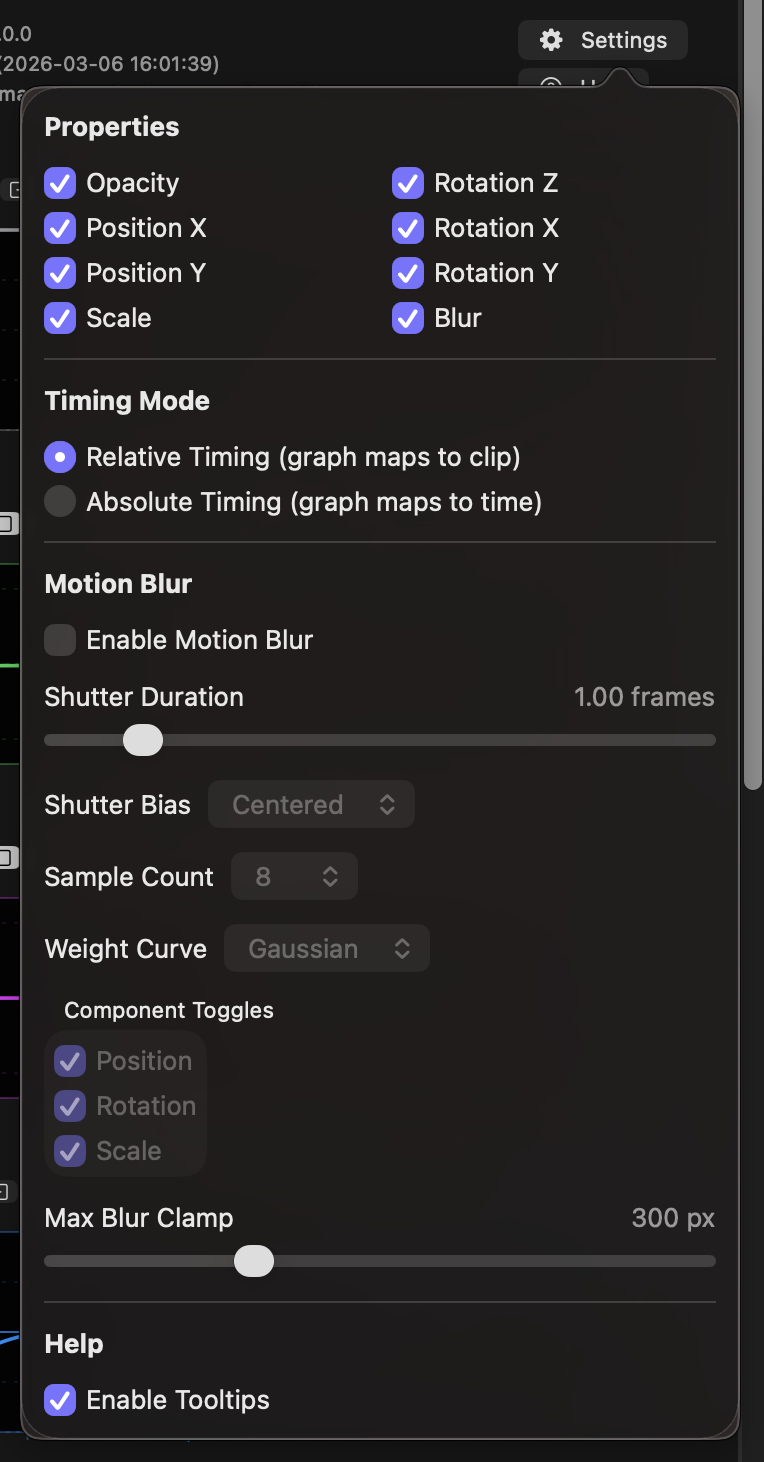
- Click the Settings button to pop up a panel with four sections: Properties, Timing Mode, Motion Blur and User Interface.
- Properties allows some graphs to be hidden by unchecking them. At least one graph must remain active.
- Note that those graphs, if keyframes have been changed, will still have an effect if deactivated.
- Currently, all graphs except
Scale XandScale Yare activated by default.New in v1.5 - The Opacity graph has a Solid checkbox after it, unchecked by default.
New in v1.5- When Solid is checked, the Opacity graph will fade to black instead of changing opacity.
- Only check the Solid checkbox if you're experiencing issues with other effects in combination with Keyframe Toolbox.
- This setting lets you avoid a flash/flicker bug triggered when a low-opacity clip has one of a few specific effects applied later in the processing chain, for example, on an Adjustment Clip positioned above a Keyframe Toolbox clip that fades Opacity up.
- Known problematic effects include Dehancer Pro, Filmconvert Nitrate or Cinematch.
- This issue is rare, but can occur without Keyframe Toolbox if a clip's native opacity control is set manually to a low level.
- Timing Mode, which allows:
Relative Timing (graph maps to clip)which is appropriate when working with still images, or you want to create a movement that spans the clip length, with that animation automatically retiming if the clip length is adjusted.- In Relative Timing mode, not every keyframe created will be positioned exactly on a frame, because the graph needs to stretch to match any clip length. While this rarely causes visible issues, switching to Absolute Timing mode will snap all keyframes to actual frames. Alternatively, you can move the keyframed positions manually using with the on-screen control, which displays the object at its actual position but the position graph at an idealised position. If a discrepancy is visible, Shift-dragging the visible object position to the desired position will fix it.
New in v1.3
- In Relative Timing mode, not every keyframe created will be positioned exactly on a frame, because the graph needs to stretch to match any clip length. While this rarely causes visible issues, switching to Absolute Timing mode will snap all keyframes to actual frames. Alternatively, you can move the keyframed positions manually using with the on-screen control, which displays the object at its actual position but the position graph at an idealised position. If a discrepancy is visible, Shift-dragging the visible object position to the desired position will fix it.
Absolute Timing (graph maps to time)which is appropriate when specific animation moments must happen at particular moments in the video. If the source clip is trimmed in this mode, the graphs will be cropped, or extra space will be added around the first or last keyframes.- In Absolute Timing mode, time values are shown in frames and timecode. (If a clip is less than a minute long, only seconds and frames are shown.)
- Keyframe placement is snapped to actual frames in Absolute Timing mode.
New in v1.3This means that when a preset such as an oscillation is set to bounce, the lowest point of each bounce will be a visible keyframe.
- Motion Blur, when active, creates blur on moving objects. Adjust the settings here to adjust the blur parameters.
- User Interface, which includes:
- A checkbox to enable or disable tooltips.
- A checkbox to enable or disable on-screen controls.
- A checkbox to enable Velocity graphs behind each keyframe graph. When unchecked, grid lines are shown.
New in v1.5- The Velocity graph shows change in speed, is scaled automatically to fill the space available, and cannot be edited directly.
- A checkbox to enable or disable Playhead Movement, which we recommend unchecking when working in storylines (also known as Secondary Storylines).
New in v1.4- Normally, when a graph is clicked or an on-screen control previous/next button is clicked, the timeline playhead is moved to that frame. However, when Keyframe Toolbox is applied to a clip in a storyline, Final Cut Pro gives us incorrect timecode information. This means that the playhead is moved to the wrong place.
- To prevent this, when working on a clip in a storyline, disable playhead movement.
- To save the currently chosen settings as the default for new instances of Keyframe Toolbox, press the button at the bottom of the panel: Save Current Settings as Default.
New in v1.1