On-screen controls
On-screen controls (OSC) allow you to click on drag in the viewer to create or delete keyframes. New in v1.3
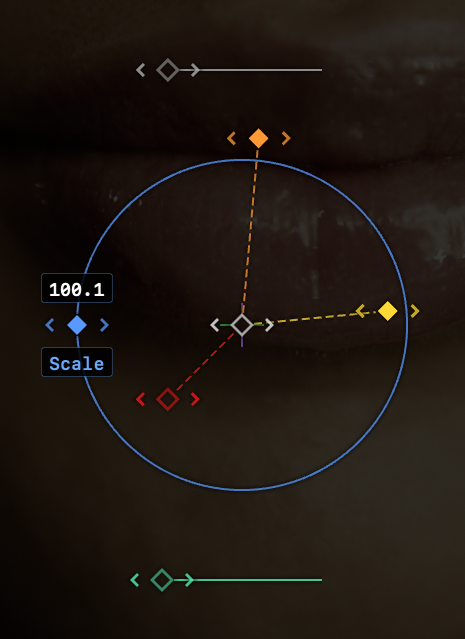
- Labels appear while the diamonds are dragged.
- Position is in the centre, Rotation Z/X/Y are on spokes, Scale has a circle, Opacity is above and Blur is below.
- Click or drag the colour-matched diamonds to create a new linear keyframe at the current time on any visible property.
- Command-click or drag an OSC diamond to create a new keyframe with easing handles applied.
- Keyframe diamonds are now filled if they are at the current playhead position, in the OSC and in the graphs.
- Click a filled keyframe diamond in the OSC to delete that keyframe. (This doesn’t happen in the graph.)
- Click the previous/next buttons around each keyframe to jump to the neighbouring keyframes on that property.
- Hold
CAPS LOCKwhile adjusting Position keyframes to constrain movement to only one dimension and only create a keyframe on that graph. - Motion paths are shown, using diamonds to indicate keyframe positions (on X, Y, or both) and white dots to indicate tweened frames.
- On-screen controls can be instantly hidden by activating the Live/OSC mode, using Caps Lock. (Note that the Live Scrubbing button in the Inspector has been renamed.)
- If you prefer not to see the OSC at all, it can be disabled in Settings.