
Resetting and scaling the graphs
Each graph can be reset, zoomed horizontally, and shown in one of three vertical sizes.
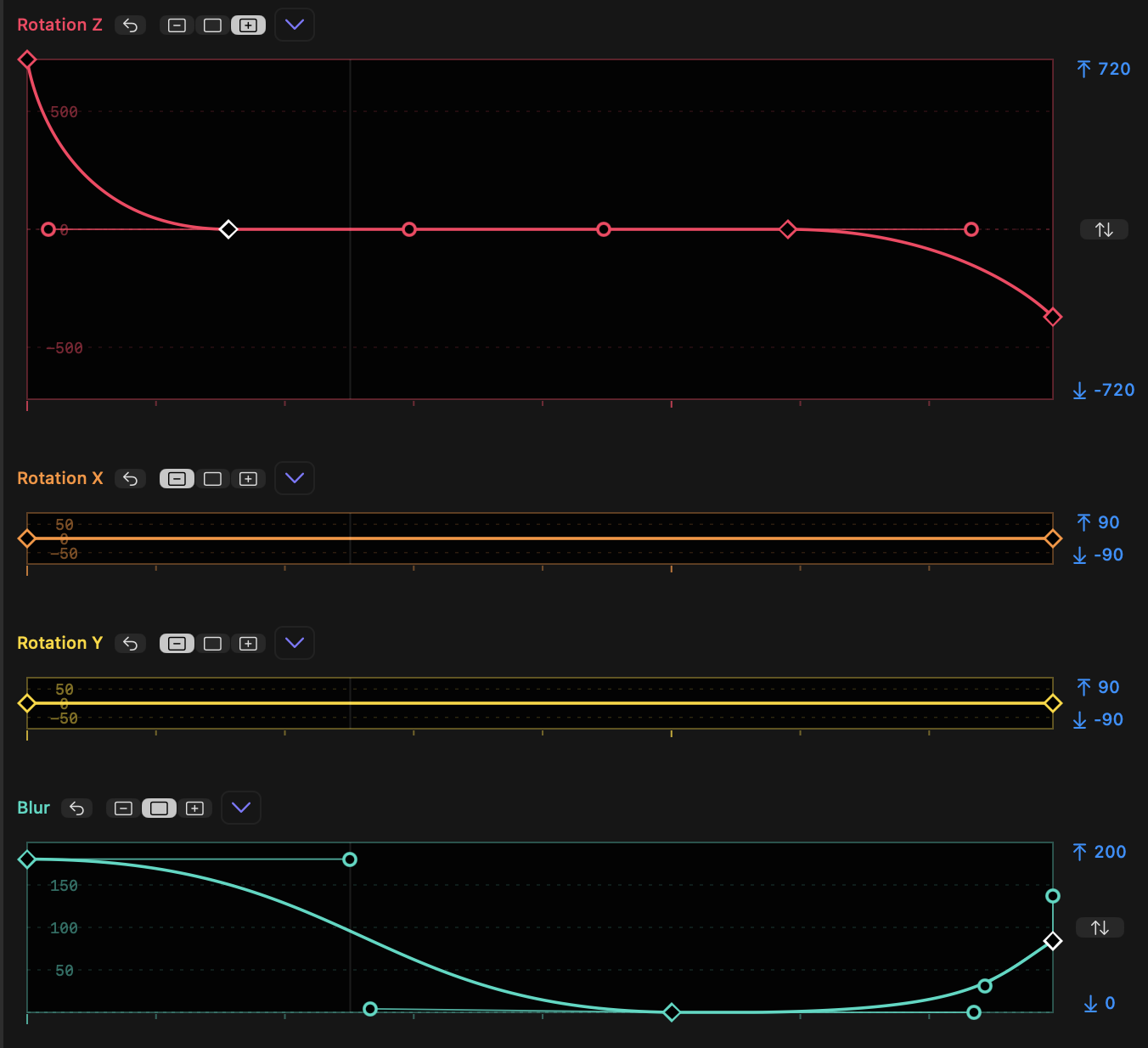
- Each property graph can be reset using the reset button next to its name.
SHIFT-click any graph's reset button to reset all graphs at once.- To the right of the reset button, you'll see a three-position toggle displaying the current graph height: Minimised, Standard or Expanded.
- When Minimized, the "Fit" button within the upper and lower limits is not available. All other controls work in any size.
- Graphs are only minimised temporarily, to create space for other graphs to be made larger. When a clip is reloaded in the Inspector, Keyframe Toolbox will resize to show all graphs in Standard or Expanded sizes.
New in v1.4- Remember: if you don't need to see a graph, you can hide it in Settings.
SHIFT-click on a toggle to force all graphs to that size.OPTION-click on a toggle to set that graph to the chosen size and minimize all other graphs.- As it's not possible to show all graphs at larger sizes, when graphs move to Standard or Expanded size, other graphs may shrink.
- Graphs can be zoomed horizontally. When zoomed in, a scroll bar appears below all graphs, and the tick marks reflect the new zoom state.
New in v1.1- To zoom all graphs in or out, while the pointer is over a graph:
- Spread two fingers together or apart on a trackpad.
- Hold
OPTIONas you scroll with a mouse wheel. - Hold
OPTIONas you scroll by moving two fingers together vertically on a trackpad. - Double-click in empty space, to show 25% of the width of the full graph. Double-click again to zoom out.
- To scroll all graphs, while zoomed in with the pointer over a graph:
- Move two fingers on a trackpad horizontally.
- Hold
SHIFTas you scroll with a mouse wheel. - Hold
SHIFTas you scroll by moving two fingers together vertically on a trackpad.
- To zoom all graphs in or out, while the pointer is over a graph: