
Keyframe graph basics
Keyframes remember values at points in time.
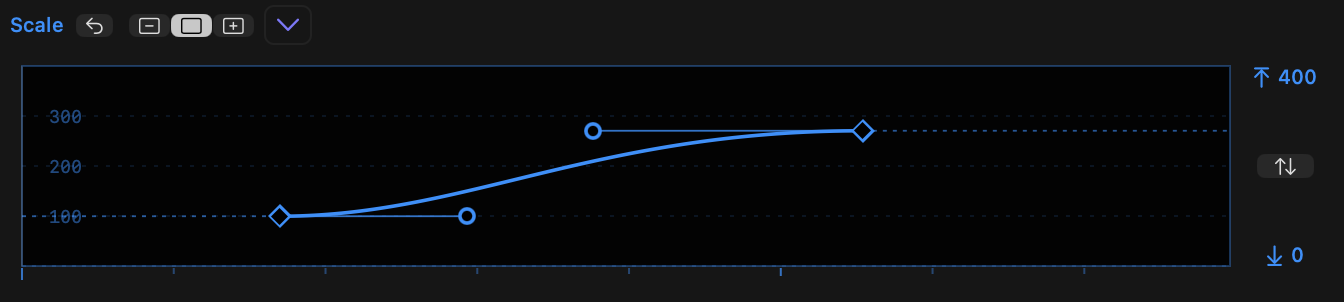
- Each graph starts with a keyframe at the start (left) and end (right) and a line connecting them.
- The graph width maps to the clip width, while the graph height maps to the values of the property, within the limits shown to the right of that graph.
- Linear keyframes transition values directly, in a straight line, while non-linear keyframes have handles that influence curves, creating smoother transitions between values.
- At least two keyframes must remain in the graph, so the first and last keyframes cannot be deleted until other keyframes are added.
- However, the first and last keyframes can be moved horizontally, so the first keyframe can start later than 0% and the last keyframe can end before 100%.
- If the playhead is over the clip, a line briefly indicates the position of the timeline playhead in relation to the clip. The line will update to the correct position as you move keyframes around, to allow you to snap keyframes to the playhead.
- This "mini playhead" can be moved by using the scroll wheel as you hold
COMMANDwhile the pointer is over a graph. You can also holdCOMMANDwhile moving two fingers on a trackpad.New in v1.1 - Alternatively, activate Live Scrubbing with the Live/OSC button at the top, or press
CAPS LOCKto toggle it. When Live Scrubbing is active, moving the mouse over a graph moves the playhead. - As you drag a keyframe, hold
SHIFTto enable snapping to the playhead. - Opacity has a fixed 0..100 range, while the other properties use defaults that should make sense, based on the clip properties. (Note that Position values are calculated based on the clip resolution, not the timeline resolution.)
- All other limits can be changed by dragging them, horizontally or vertically. Hold
OPTIONas you drag to change both sides in opposite directions. - Press the button between the limits to fit the graph to the current values within it, plus a small buffer.
- Tick marks underneath each graph indicate seconds, with an extra indication 5-second and 10-second intervals.
- Lastly, please note that due to a bug, playhead movement can be unreliable in secondary storylines.
- If possible, avoid using Keyframe Toolbox on clips in storylines.
- In a storyline, we recommend to uncheck Playhead Movement in Settings. This lets you use Keyframe Toolbox in storylines without unwanted playhead jumps. Why?
- In a secondary storyline, the playhead cannot be moved reliably, as the clip's timecode is not accurately reported. We also can't reliably detect that a clip is in a secondary storyline and disable these features automatically. As a result, the playhead is likely to jump to near the start of your timeline instead of the correct position.
- Playhead movement includes clicking in the graphs to move the playhead to a specific position, jumping to a keyframe position when editing a keyframe numerically, moving the playhead in the graphs when Live Scrubbing is active, and using the previous/next keyframe buttons in the OSC.