
Import Audio as Graph
This feature links a parameter to the volume of specific frequencies in an audio file. New in v1.5
- To animate a parameter along to an audio track, you’ll need an audio file from the same part of your timeline as the clip you’re animating with Keyframe Toolbox. The audio file needs to be the same length as the clip to which Keyframe Toolbox has been applied. If you don’t have the audio file already, an easy way to create this file is to:
- Press R, to select the Range Selection tool.
- Click the clip you plan to animate, to select it as a range.
- Choose File > Share > Export File (⌘E) and save an audio-only file as a WAV.
-
In Keyframe Toolbox, choose the parameter you want to animate, such as Scale, click the graph menu, then choose Import Audio as Graph.
-
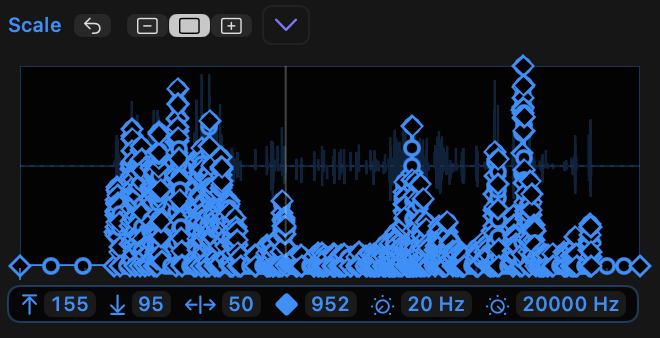
After processing, controls appear below the graph:
- Upper limit — the highest value produced.
- Lower limit — the lowest value produced.
- Bend — to smooth the transition between keyframes. This will not be visible with shorter clips, where one keyframe will be added for each video frame, but can be important for longer clips.
- Number of keyframes — lower numbers are faster to work with, but less precise. The maximum value is 1000, and it’s recommended to limit the duration of audio to about 5 minutes.
- Lower Frequency — the lowest frequency recognised.
- Upper Frequency — the highest frequency recognised.
-
All the values can changed by dragging them, or by double-clicking and using numeric entry:
- Type a new value in.
- Use Up and Down arrow keys (↑ and ↓) to change values by 1.
- Use
SHIFT-up andSHIFT-down arrows (⇧↑ and ⇧↓) to change values by 10. - Use
OPTION-up andOPTION-down arrows (⌥↑ and ⌥↓) to change values by 100. - Press Right arrow (→) or Tab to edit the next value.
- Press Left arrow (←) or
SHIFT-Tab to edit the previous value. - Press
ENTERorRETURNto approve the current value, orESCto exit. - As updating a graph can take a few seconds, re-analysis only occurs when a value is approved.
-
Control the lower and upper frequency values to reveal specific instruments or sounds from your exported file.
-
Important: the Upper and Lower limit of the audio controls are set beyond the Upper and Lower limits of the graph, the audio graph will be clipped. This allows you to remove quieter parts of the graph by setting the audio lower limit to a lower value than the graph’s lower limit.
-
As with the presets, the controls disappear if you move a keyframe manually.