# Keyframe Toolbox
**Keyframe Toolbox** finally brings a true graph editor with advanced animation controls into Final Cut Pro.
> [:icon-desktop-download: Click here to **buy** on the **Mac App Store**. US$20 once. Not a subscription.](/buy/)
---
## Why do you need this?
Because linear keyframes create clunky animations.
Here are the same keyframes in FCP, and with custom smoothing curves applied in Keyframe Toolbox:
Final Cut Pro only includes basic keyframe controls — in many contexts, only linear keyframes can be created.
With Keyframe Toolbox, you can create exactly the movement you're looking for, with custom smoothing curves:
---
## How does this work?
With the Keyframe Toolbox effect applied, the Inspector shows separate graphs to control opacity, position, scale, 3D rotation, and blur. They're easy to understand:
1. In a keyframe graph, time moves forward horizontally, while each value changes vertically.
2. Each keyframe remembers a value at a point in time.
3. Handles on the keyframes give you full control over how values change between keyframes.
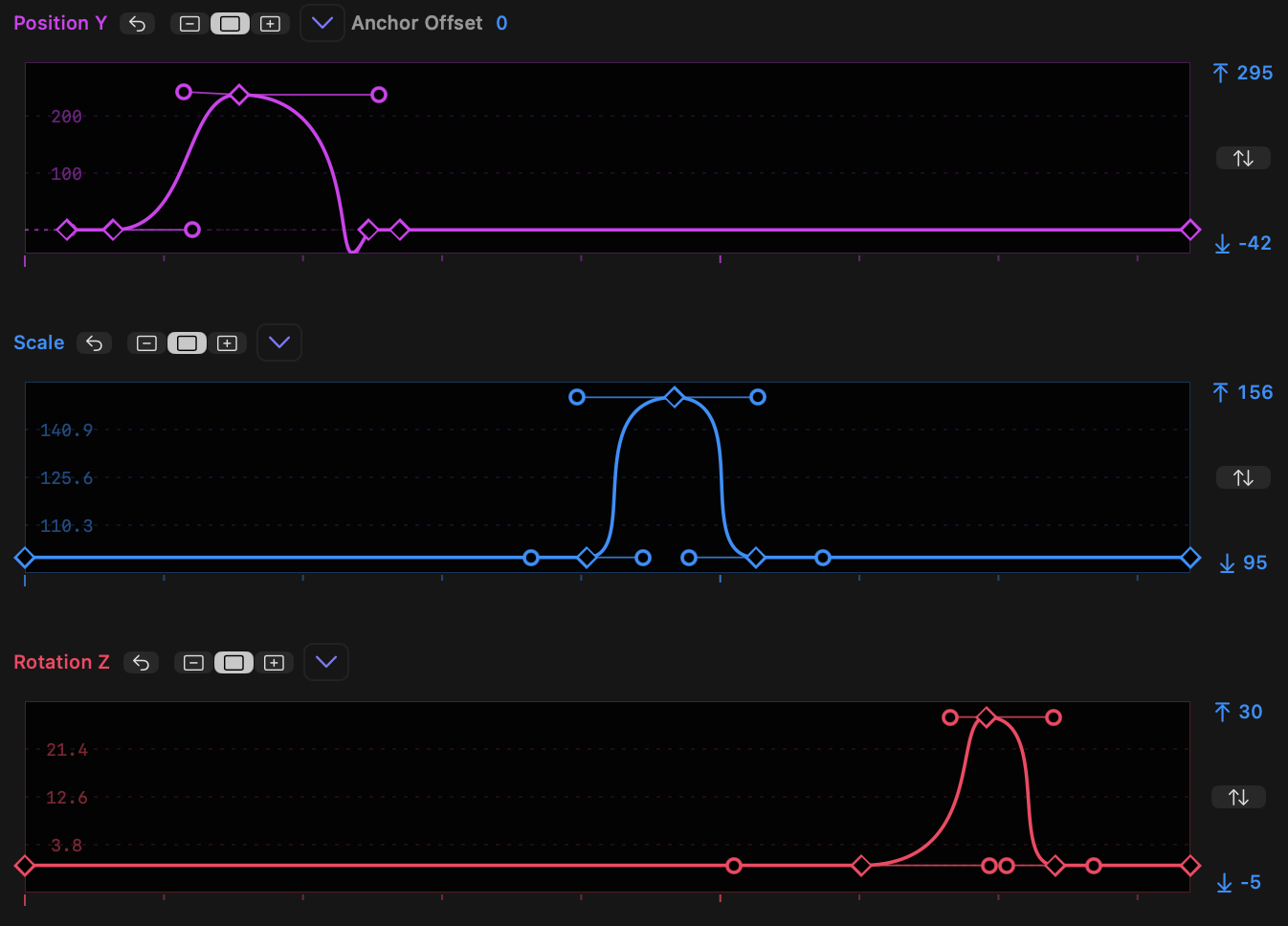
Here's an example of how you might animate Position X and Position Y to move an object to the right, then hold, then move down:
Crucially, each property can be animated separately — because you often need to control opacity or blur in a different way to position or scale. We don't know of another tool that gives you this much control over animation in Final Cut Pro.
For many more examples of how you can use keyframe graphs to create animation, head to [Sample Animations](/how-to-use/sample-animations).
---
## Key Features
- **Separate keyframe graphs** for Opacity, Position X, Position Y, Scale, Rotation Z, Rotation X, Rotation Y and Blur, including intuitive control over keyframes, handles and curves
- Keyframes can snap to one another, to sync animations, and can be linked
- Multiple keyframes can be selected, then moved or resized together
- **On-screen controls** to help you create, delete and jump between keyframes
- **Full numeric entry** for total precision over keyframe and handle values
- **Zoomable, resizable graphs** to let you see your animations in detail
- **Presets** to let you quickly create common movement patterns (fades, drifts, moves, oscillation, bounces)
- **Custom presets** to let you store, re-use and share any other patterns you wish
- **Easing** to let you smooth out curves in a predictable way
- **Motion Blur** for more realistic animation
- **Absolute and Relative timing modes** to keep keyframes fixed in time, or stretch with clip length
- **Extensive settings and shortcuts** for advanced users
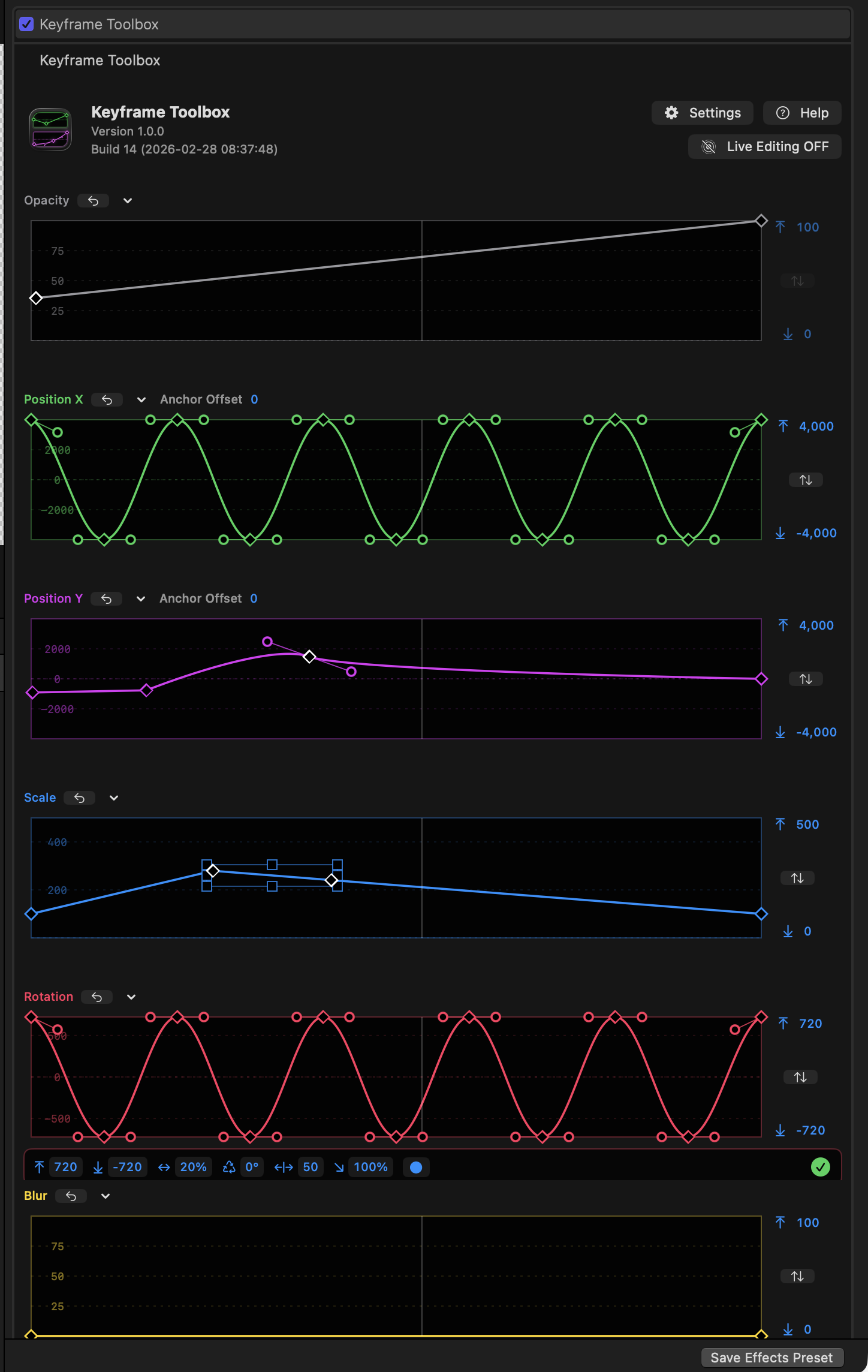
The tools here are comprehensive, but they don't have to feel overwhelming; simple animations are still easy to create. You don't have to use all the keyframe graphs at once, and you can hide graphs you're not using.
But... you can animate all the graphs at once if you wish:
This is a power-user’s tool to help editors and animators create great animation on the Final Cut Pro timeline.
Keyframe Toolbox integrates all the very best features from other apps:
- Apple Motion (color, repeating animation patterns)
- Adobe After Effects (scalable keyframe groups)
- Blender (precise value editing)
- Adobe Illustrator (path drawing and editing)
- …plus new ideas of our own.
We've made our graphs as easy to edit as curves in a vector drawing program, and included flexible oscillations and other common patterns to make it easy to create and then tweak many kinds of animations.
Keyframe Toolbox is a one-time purchase, not a subscription, and we hope you love it.
To find out more, please visit our [How To Use](/how-to-use) section, which includes many examples of animation curves you could employ, and detailed help on every included feature.
Ready to go? [Buy it from the Mac App Store or check out the TestFlight version here](/buy).
---
## Testimonials
Users say:
- "**AWESOME**
My. Favorite. Plug-in. Period.
The way keyframe application **SHOULD BE**.
Thank you for developing this."
- "One of the best plugins I have ever used, great job!"
- "This is an incredible tool. First day purchase for me but I'll test it out over the coming days. Nice work!"
- "Just bought it. What a gorgeous interface. Love it."
- "Have to get this tool for my FCP as it makes it really easy to move objects!"
- "Just wanted to say I bought this a couple of weeks ago and it's truly unlocked so much potential for the kind of video work I do with orchestras and ensembles. Thank you!"
---
## Can I see how to use it?
Sure — here's a live-recorded demo of how to punch in and out on a video, using the new features in v1.3.
https://youtu.be/EqDaAUjYzS0
---
## System Requirements
- Final Cut Pro 11+ (FCP 12 recommended, Apple Creator Studio or standalone version).
- Apple Silicon recomended.
---
## Who made this?
Created by Iain Anderson, author of [Final Cut Pro Efficient Editing](https://fcpefficientediting.com), and Chris Hocking, developer of [CommandPost](https://commandpost.fcp.cafe) and many other apps. [More about us here](/credits).