# Working with precision
Exact numbers can be entered for keyframes and handles.
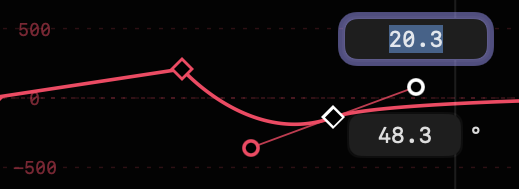
- **Double-click on any keyframe** to see its value (above) and time (below).
- If Absolute Timing is active in Settings, the time value will be shown as a number of frames (editable) and also below that field as abbreviated timecode. `New in v1.1`
- **Double-click on any handle** to see its distance (above) and angle (below).
- In both these cases, **type in new values** to change them, then approve the change by pressing `RETURN` or `ENTER`, or cancel the change with `ESCAPE`.
- Alternatively, use **up and down arrows** to change the values by 1, **`SHIFT`-up and `SHIFT`-down arrows** to change the values by 10, and `New in v1.1` **`OPTION`-up and `OPTION`-down arrows** to change the values by 100.
- When using up and down arrows to change values, changes are immediately visible. `New in v1.1`
- When numeric entry is active, use **left and right arrows** to move to the previous or next keyframe or handle. `New in v1.1`
- If the playhead is over a keyframe (for example if the graph name has just been clicked to create a new keyframe) then clicking the property name activates numeric entry. `New in v1.1`