# Using the graph menu
Each graph has a menu that enables some advanced features.
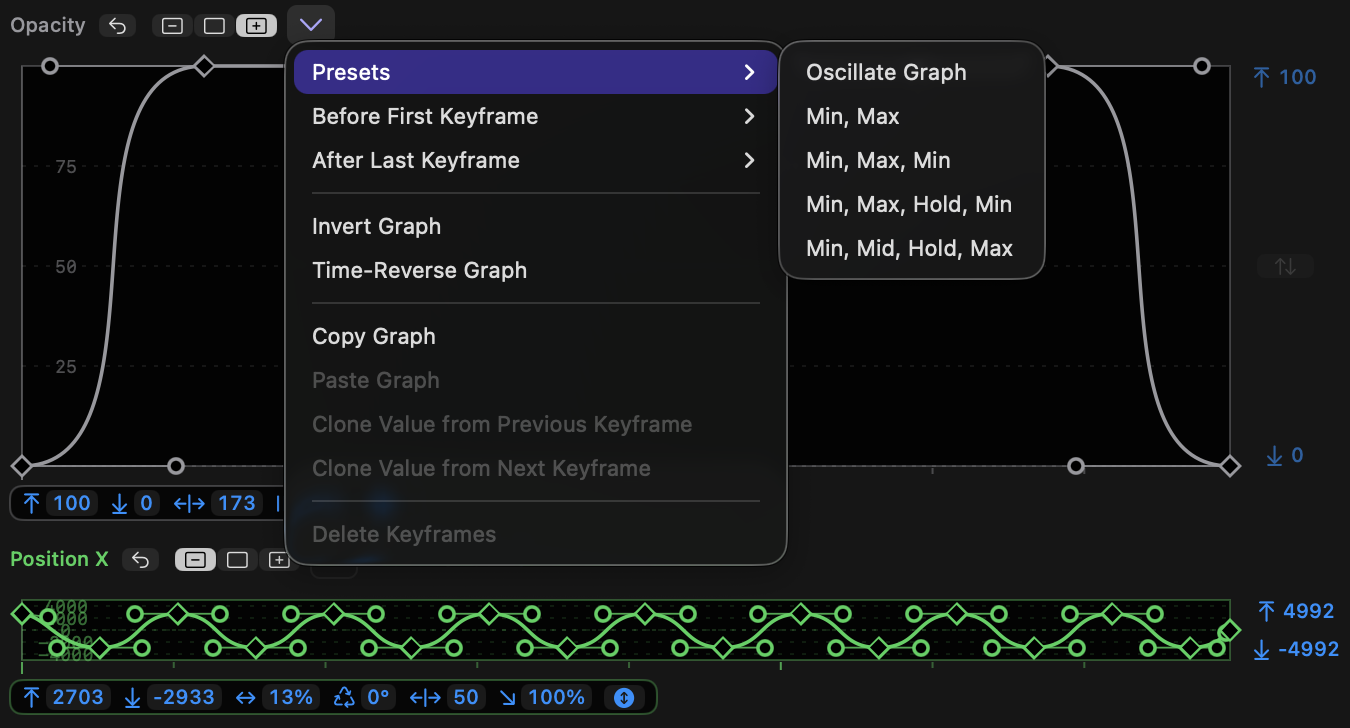
- The graph menu can be accessed by the menu to the right of the toggle buttons, or by right-clicking on the graph.
- Many of these menu options are context-sensitive. If you select one or more keyframes, those keyframes will be affected. If no keyframes are selected, the entire graph is affected.
- When a single keyframe is selected, use `Clone Value from Previous Keyframe` or `Clone Value from Next Keyframe` to simulate a Hold keyframe.
- If no keyframes are selected, an entire graph can be reversed in time by choosing `Time-Reverse Graph`, or flipped vertically by choosing `Invert Graph`.
- If two or more contiguous keyframes are selected, they can be reversed by choosing `Time-Reverse Keyframes`, or flipped vertically by choosing `Invert Keyframes`.
- Use `Copy Keyframes` or `Copy Graph` to copy keyframes from a graph.
- Use `Paste Keyframes` or `Paste Graph` to paste copied keyframes from one graph into another graph. One or more keyframes must be selected for Paste Keyframes to be available.
- `Clone Value from Previous Keyframe` and `Clone Value from Next Keyframe` change the value of the selected keyframe to the value of a neighbouring keyframe.
- **Presets** and **Before First Keyframe and After Last Keyframe** are discussed in the following sections.