# Time Remap
Use a Time graph to control playback of any clip. `New in v2.0`
- To retime a clip with a Time graph, you'll apply the new, dedicated effect: **Keyframe Toolbox Time Remap**. If you don't see it, please run the Keyframe Toolbox app, then restart FCP.
**Keyframe Toolbox Time Remap** is a separate effect that lets you control progress through a clip in the same way you can control any transform parameter with the regular Keyframe Toolbox effect.
To get started, add a clip to a timeline, and trim off any parts you don’t want to see at the beginning and end. **Important:** Only visible frames on a timeline can be manipulated by the Time Remap effect.
1. Turn your clip into a compound clip with ⌥G, then double-click this compound clip to jump inside.
2. Apply Keyframe Toolbox Time Remap to this clip, and then decide how long you want this clip to be. (The entire source clip will be mapped to this shorter duration.)
3. Set this **Active Duration** by dragging the number at the top-right of the graph or by double-clicking this number and typing a number in directly.
4. The retimed frames will be output for this Active Duration **at the start of the clip**. All frames after this point will follow the “After Last Keyframe” rules, which will hold on the final keyframe by default. (If you wish, you can change After Last Keyframe to Ping-Pong or Progressive, as you can with regular effects.)
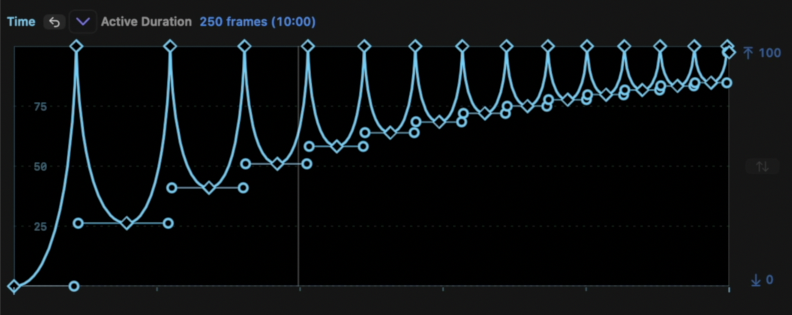
5. Now, adjust the graph, which works much like time remapping in After Effects does. **Horizontally, the graph moves through project time**, left to right as usual. The **vertical axis is clip time**, from bottom to top. The default graph starts at the bottom left, and ends up at the top right, moving forward through the clip at a consistent speed.
You can now manipulate the graph to produce the speed change(s) you're looking for.
- A steeper line plays the area between these two keyframes faster.
- A shallower line plays this area more slowly.
- If you hold ⌥ or ⌘ to smooth out a keyframe, playback speed will change gradually.
- A horizontal line is a freeze frame.
- If a line goes down (from left to right) then time moves backwards.
You can add keyframes to control speed manually if you wish, or you can use the presets.
- The Oscillation preset, with Decay increased and the type switched to the inverted bounce graph will bounce forward in time through the clip.
- The Min, Hold, Max preset will play forwards, pause, then play forwards again.
**Important:** Keyframe Toolbox Time Remap can only use the frames that are visible on a timeline. To avoid stuttering when slowing a clip down, you’ll want to make as many frames as possible, and you can add more frames at any time.
If your clip was shot at a higher frame rate than your timeline, choose Retime > Automatic Speed. This built-in retiming command plays a clip at the timeline's frame rate, so a clip shot at 60fps but placed on a 25fps timeline would play at 42%.
If you only plan to speed a clip up, this will be enough for good results. However, if you want to slow a clip down significantly, you may need more frames for smooth results.
You can slow a clip down further by using Final Cut Pro’s (excellent) Super Slow Mo feature. This will take a little time and storage space to process, but *you won’t have to adjust the Keyframe Toolbox Time Remap graph*. Because the Time Remap effect always uses all the frames you give it, they will still map to the chosen Active Duration — you'll just get smoother results.
When you’re happy with the results, leave the compound clip by stepping back up to the main timeline. You can now **trim the compound clip from the end, not the beginning**, and set it to the same duration you chose as the Active Duration earlier.
For smoother playback, render this clip with ⌃R.