# Adding and moving keyframes
Keyframes can be moved and new keyframes can be added.
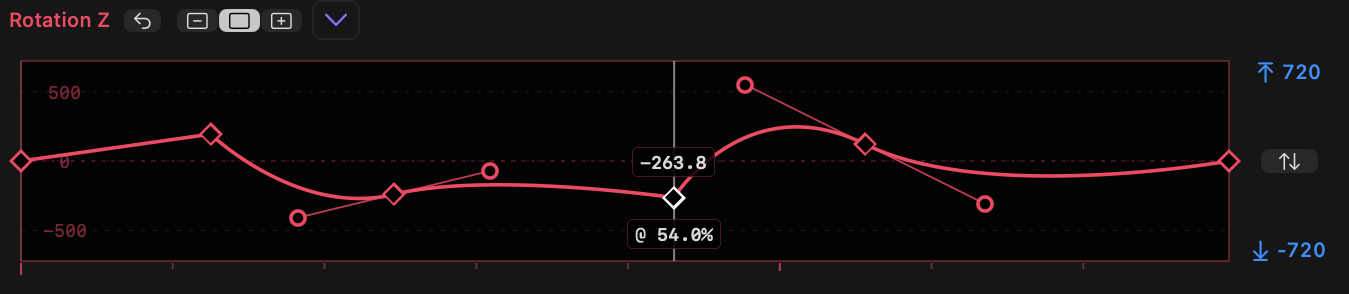
- **Double-click** on a graph line to add a linear keyframe and remember a value at a point in time.
- **Click and drag on a keyframe** to move it.
- During the drag, numbers will appear showing the keyframe's value (above) and time (below).
- **`SHIFT`-drag on a keyframe** to lock movement to horizontal (time) or vertical (value) movement.
- If you move a keyframe on one graph to a position near a keyframe on another graph, a vertical line will appear.
- If `SHIFT` is now held down, the keyframe will snap to this line to align with keyframes on other properties.
- **Dragging a keyframe and adding `SHIFT` while dragging** will also snap to the line that indicates the playhead position, if present. This allows you to snap a keyframe to the current playhead position.
- **Drag a line** connecting two keyframes to move both keyframes together.
- **Click a line** connecting two keyframes to select both keyframes. `New in v1.1`
- **Click on the name of a property** at the top of a graph to create a new keyframe at the current time. `New in v1.1`
- **`SHIFT`-click on the name of a property** at the top of a graph to create a new keyframe at the current time on all graphs. `New in v1.1`